Follow these steps to start protecting your tax-free stipends. The whole process takes about 10 minutes.
1
Create your account
Sign up at app.taxhomebase.com using your email address. TaxHomeBase uses AWS Cognito for secure authentication — you’ll verify your email and set a password.After signing in, you’ll see the Dashboard with an onboarding checklist to guide you through setup.
2
Set up your tax home
Your tax home is the foundation of your tax-free stipend eligibility. Go to Tax Home and enter:
Address — Your permanent residence (where you maintain ties)
Monthly rent — What you pay to maintain the home (even while on assignment)
Voter registration and driver’s license state — IRS documentation ties
Last visit date — The IRS expects regular visits (every 30 days recommended)
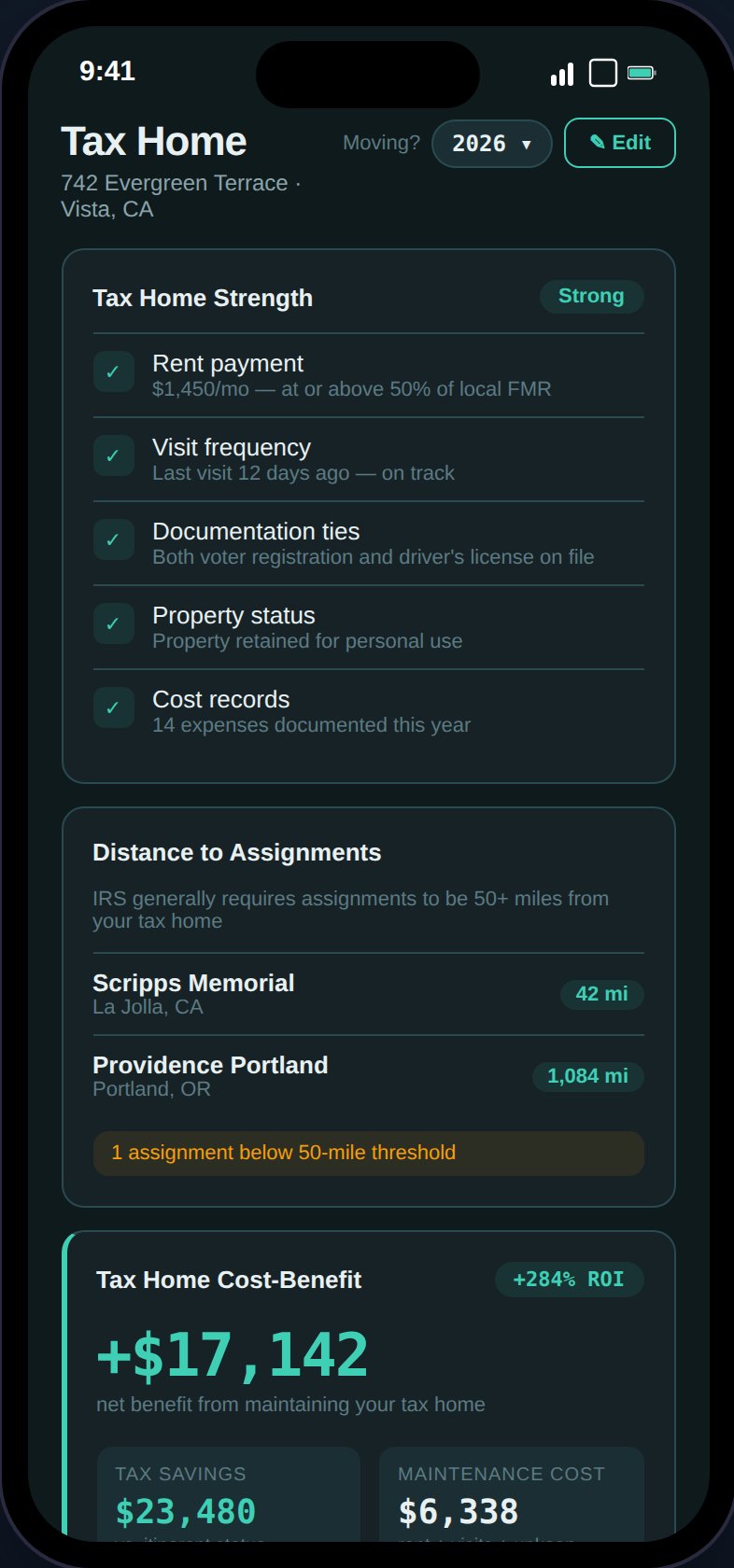
The Tax Home page shows your strength score, distance to assignments, and cost-benefit analysis.
TaxHomeBase evaluates five factors — rent payment, visit frequency, documentation ties, property status, and cost records — and gives you a strength rating of Strong, Moderate, or At Risk.The distance checker automatically verifies that each assignment is 50+ miles from your tax home, a common IRS threshold.
Upload supporting documents (lease agreements, utility bills) right away. These are your first line of defense in an audit.
3
Add your first assignment
Go to Assignments and tap the + button. Enter your contract details:
Facility name, location, and state
Start and end dates
Base pay (weekly, pre-tax)
Housing and M&IE stipends (weekly)
Any bonuses (sign-on, completion, referral)
Once added, each assignment card shows GSA per diem compliance, housing adequacy vs. local rent, stipend defense status, and estimated net profit after taxes.
Have a contract PDF? Use Scan Contract to auto-extract all 12 fields using AI. Supports PDF, JPEG, and PNG files up to 10MB.
4
Log an expense
Go to Expenses and add your first deductible expense. Common categories include:
Travel — Flights, gas, tolls to/from assignments
Licensing — State license fees, compact license costs
CE Credits — Continuing education courses
Supplies — Stethoscopes, scrubs, medical equipment
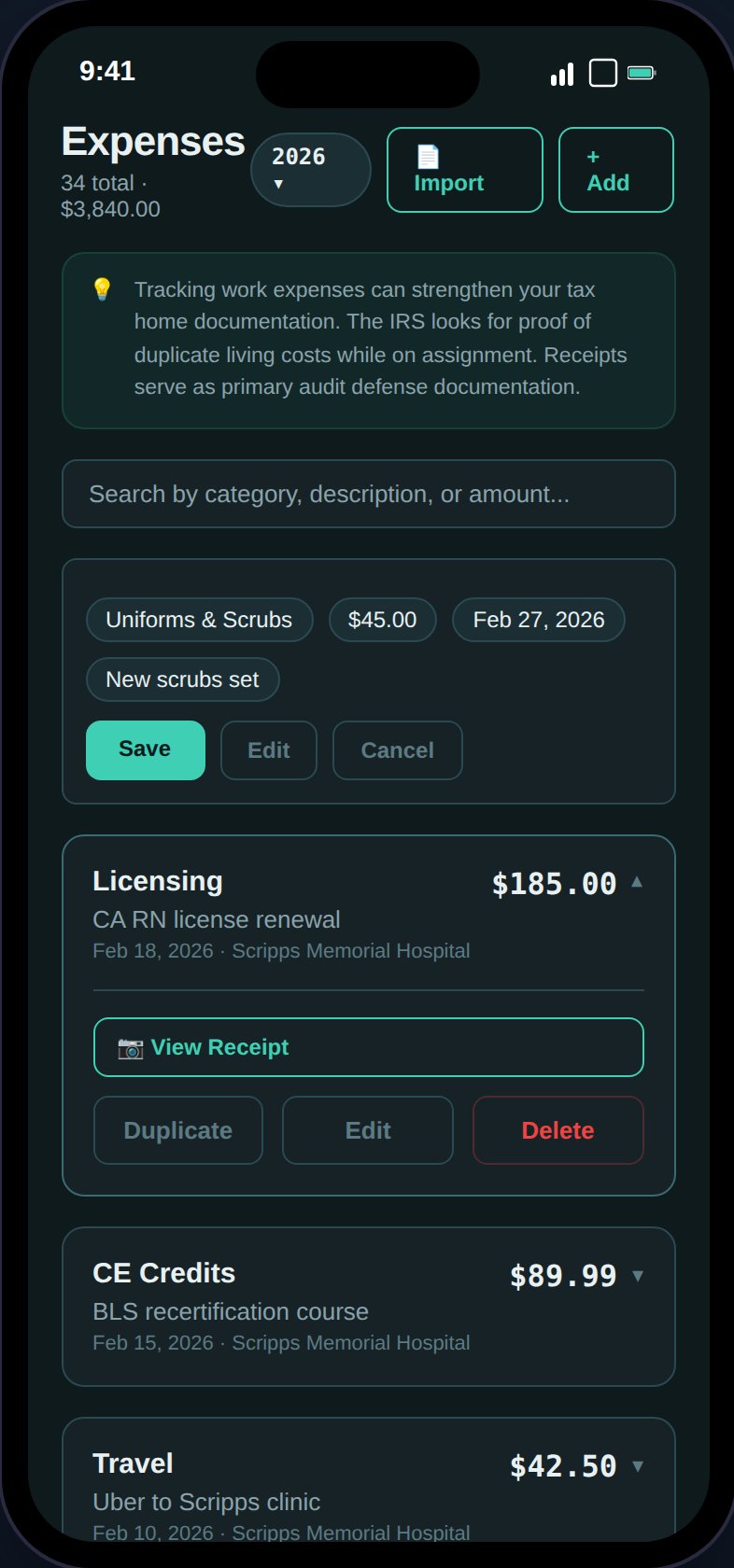
Track expenses with receipt scanning, categorization, and bulk CSV import.
You can also scan a receipt photo to auto-fill the amount, date, and vendor, or import expenses in bulk from a CSV file. Attach receipt images for IRS substantiation — expenses over $75 and all lodging require receipts.
5
Check your Dashboard
Return to the Dashboard to see your status:
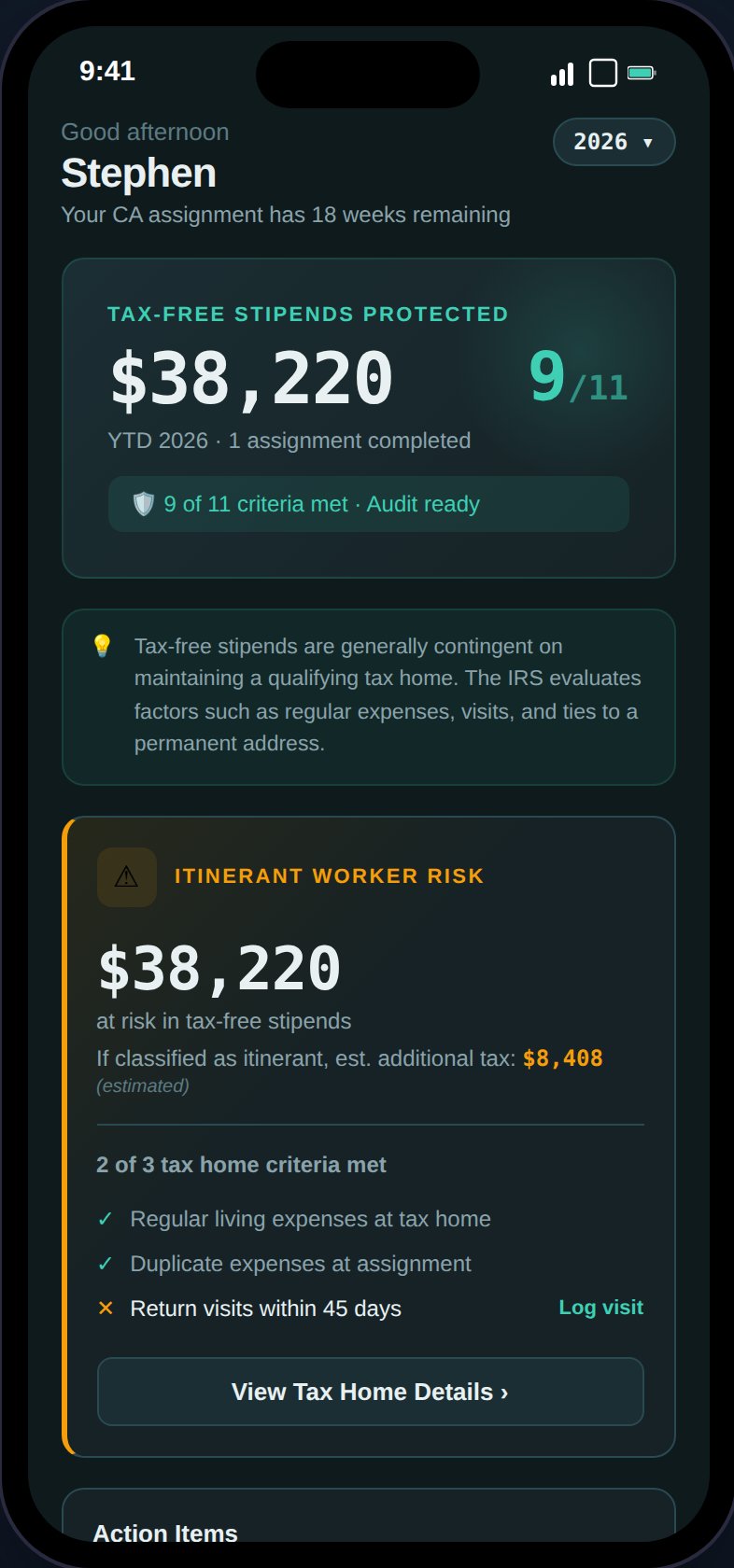
Stipend Protection Banner — Shows your YTD tax-free stipends and audit readiness score (X/11 criteria met)
Action Items — Compliance alerts that need your attention (overdue visits, missing docs, GSA exceedances)
Visit Tracker — Days since your last tax home visit with On Track / Due Soon / Overdue status