> ## Documentation Index
> Fetch the complete documentation index at: https://docs.taxhomebase.com/llms.txt
> Use this file to discover all available pages before exploring further.
# Receipt Scanning
> Scan receipts with AWS Textract to auto-fill expense details.
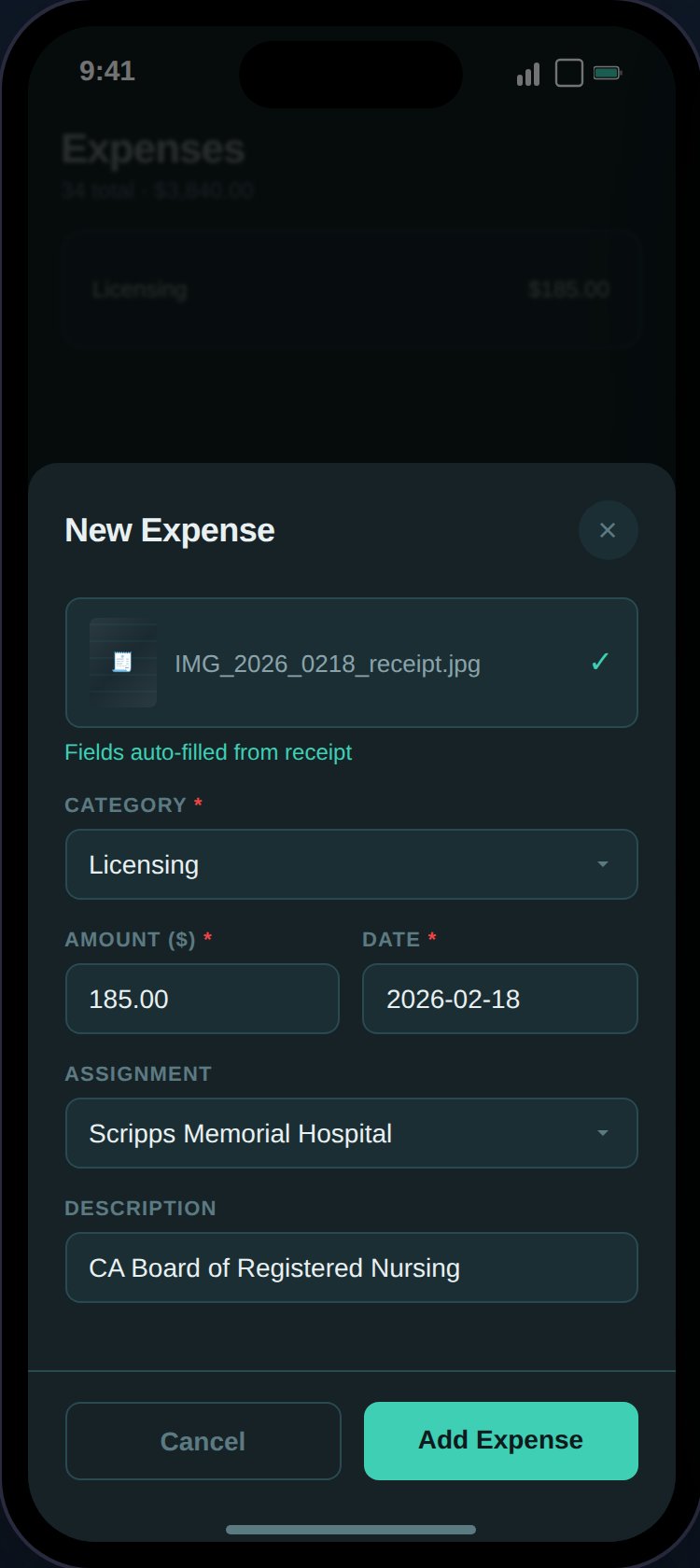
TaxHomeBase uses AWS Textract (OCR) to extract data from receipt photos and auto-fill expense fields. This saves time and helps build an IRS-compliant paper trail.
## How It Works
The "Scan Receipt" button is only available when creating a new expense (not when editing).
* Supported formats: JPEG, PNG
* Maximum file size: 10MB
* The image is uploaded to S3 via a presigned URL
AWS Textract's AnalyzeExpense API extracts:
| Field | Textract Source |
| --------------- | ----------------------------------------- |
| **Amount** | TOTAL field |
| **Date** | INVOICE\_RECEIPT\_DATE field |
| **Description** | VENDOR\_NAME field |
| **Category** | Keyword-based suggestion from vendor name |
Only empty fields are populated — if you've already entered an amount or date, those values are preserved. Review the auto-filled data and adjust as needed.
 ## Category Suggestions
Textract doesn't directly categorize expenses. TaxHomeBase uses keyword matching on the vendor name to suggest a category:
| Keywords | Suggested Category |
| ------------------------- | ------------------ |
| hotel, inn, lodge, airbnb | lodging |
| gas, fuel, shell, bp | travel |
| restaurant, cafe, food | meals |
| parking, garage | parking |
| pharmacy, medical | supplies |
If no keywords match, the category field is left empty for you to select manually.
## Viewing Receipts
After saving an expense with a receipt:
* A camera icon appears on the expense card
* Click it to open the receipt in an in-app modal
* The modal loads the image via a presigned S3 download URL
* Both the Expenses and Expense Reports pages use the same receipt viewer
## Receipt Substantiation
The IRS requires receipts for:
* All expenses over **\$75**
* All **lodging** expenses (regardless of amount)
TaxHomeBase's [Expense Reports Insights](/guides/expenses) tab shows your receipt coverage and flags items that are IRS-substantiation requirements without receipts.
## Error Handling
The scan process has step-specific error handling:
* **Presign failure** — Problem generating the upload URL
* **Upload failure** — Problem uploading to S3
* **Textract failure** — Problem analyzing the receipt
Each step shows a distinct error message with an inline retry button.
## Category Suggestions
Textract doesn't directly categorize expenses. TaxHomeBase uses keyword matching on the vendor name to suggest a category:
| Keywords | Suggested Category |
| ------------------------- | ------------------ |
| hotel, inn, lodge, airbnb | lodging |
| gas, fuel, shell, bp | travel |
| restaurant, cafe, food | meals |
| parking, garage | parking |
| pharmacy, medical | supplies |
If no keywords match, the category field is left empty for you to select manually.
## Viewing Receipts
After saving an expense with a receipt:
* A camera icon appears on the expense card
* Click it to open the receipt in an in-app modal
* The modal loads the image via a presigned S3 download URL
* Both the Expenses and Expense Reports pages use the same receipt viewer
## Receipt Substantiation
The IRS requires receipts for:
* All expenses over **\$75**
* All **lodging** expenses (regardless of amount)
TaxHomeBase's [Expense Reports Insights](/guides/expenses) tab shows your receipt coverage and flags items that are IRS-substantiation requirements without receipts.
## Error Handling
The scan process has step-specific error handling:
* **Presign failure** — Problem generating the upload URL
* **Upload failure** — Problem uploading to S3
* **Textract failure** — Problem analyzing the receipt
Each step shows a distinct error message with an inline retry button.